Create Workspace
A Workspace is a shared environment where your team develops, runs, and manages Jobs and Notebooks. Creating a Workspace gives you an isolated space with its own access controls, file storage, and resource configurations — so multiple teams or projects can operate independently within the same Yeedu Tenant.
Users can access Workspaces by selecting the 'Workspaces' option in the Yeedu navigation panel.
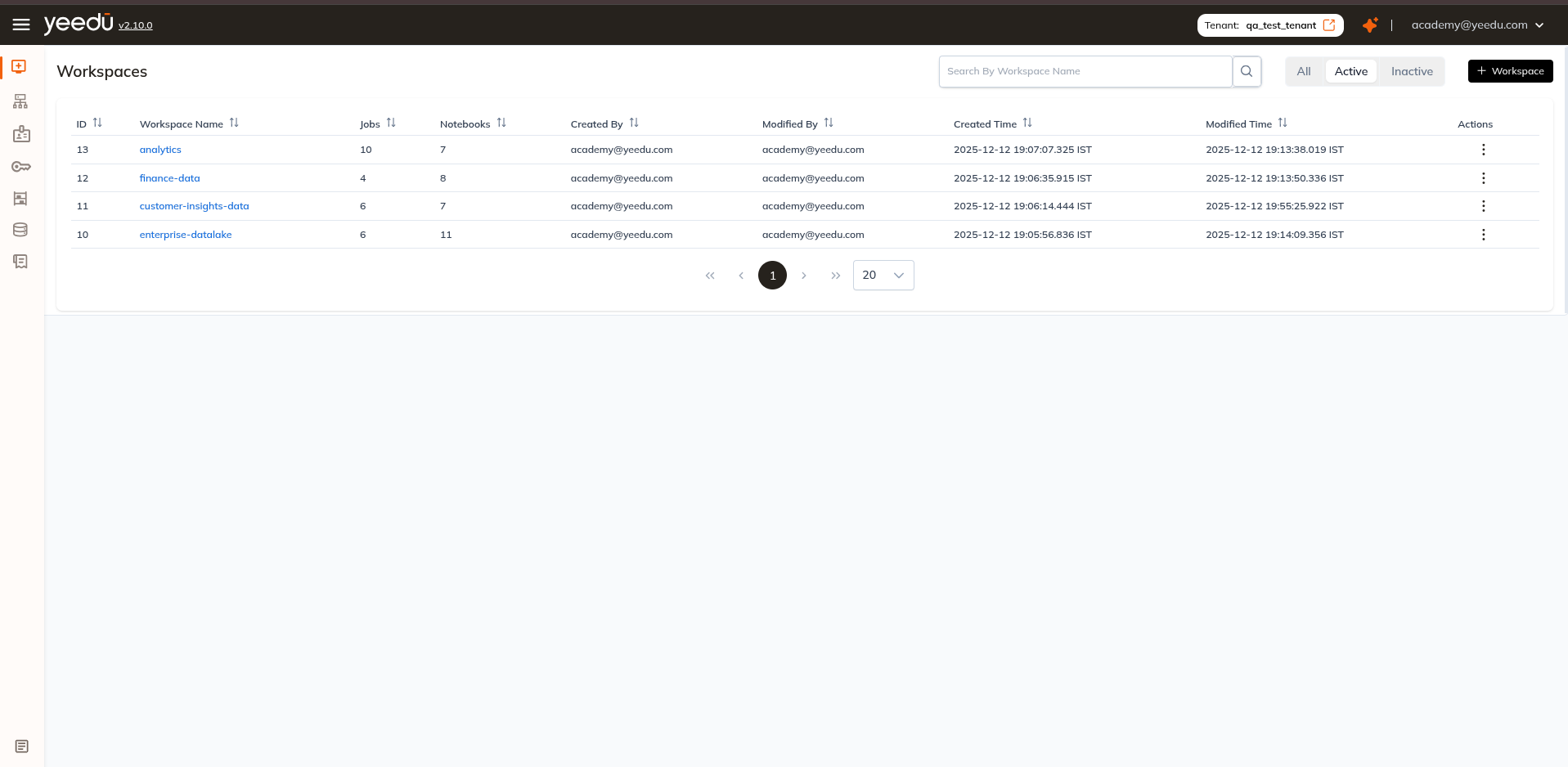
Workspace Dashboard
The Workspace landing page presents the following options to the user:
- ID: Displays the unique workspace ID associated with each workspace.
- Workspace Name: Shows the list of all existing workspace names. Click on a workspace to view details.
- Jobs: Indicates the number of jobs present in the workspace.
- Notebooks: Displays the number of notebooks present in the workspace.
- Created By: Indicates the user who created the workspace.
- Modified By: Indicates the user who last modified the workspace.
- Created Time: Displays the date and time of the creation of the workspace.
- Modified Time: Displays the date and time of the last modification of the workspace.
- Actions: Allows performing four tasks:
- Edit: Enables users to make changes and modifications to the workspace.
- Inactive: Allows users to make the current active workspace inactive. In case of an inactive workspace, it will show an option to make it active.
- Import: Supports importing previously exported jobs and notebooks into the selected workspace.
- Export: Supports exporting job and notebooks of a specified workspace.
Manage
Create Workspace
On the right side of the workspace dashboard, users can find the '+ Workspace' button located above the Action tab. This button is utilized for creating a new workspace. Clicking on the '+ Workspace' button will prompt a pop-up window to create a new workspace.
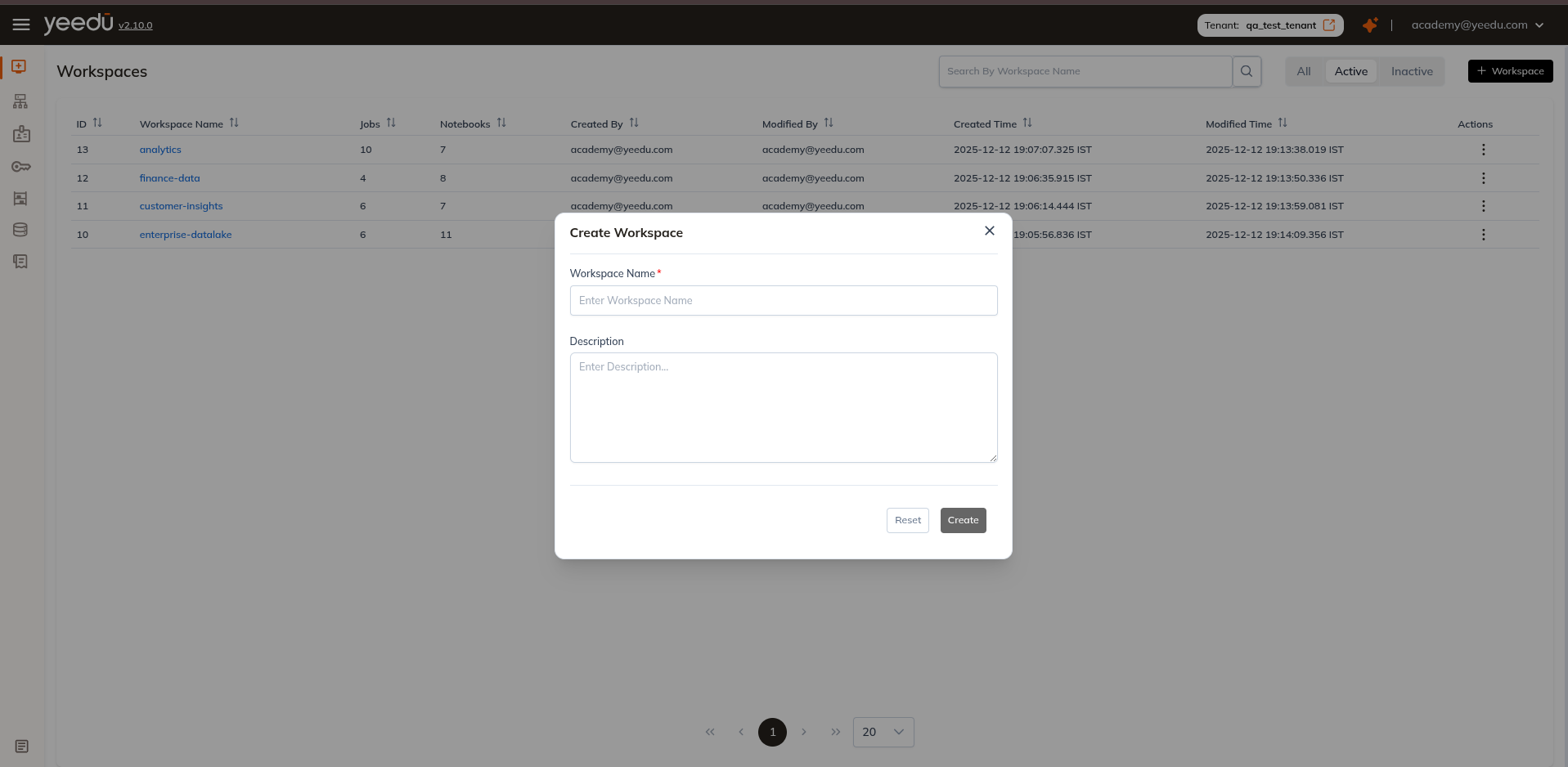
- Workspace Name: Input the name of the workspace in this field, ensuring it meets the following prerequisites:
- Maximum length: 64 characters
- Lowercase letters
- Permitted symbols: '-', '_', '@', and '.'
- Description: Optionally provide a description of the workspace in this field.
Once you create a Workspace, it is immediately set to Active status and appears on the Workspace Dashboard. You can then:
- Create and configure Jobs and Notebooks inside it.
- Upload files and folders for use in Job execution.
- Assign access permissions to other users via the Workspace Access Management.
- Attach Clusters to run your workloads.
- Import previously exported Workspace content.
Workspace Permission Matrix
| Ability | Can Manage | Can Edit | Can Run | Can View |
|---|---|---|---|---|
| Workspace Access Management | ✔ | ✖ | ✖ | ✖ |
| Activate or Inactivate the Job, Notebook, Workspace | ✔ | ✔ | ✖ | ✖ |
| Create or Update Job or Notebook Configurations | ✔ | ✔ | ✖ | ✖ |
| Run or Stop the Job or Notebook | ✔ | ✔ | ✔ | ✖ |
| Read All Job or Notebook Configurations and Runs | ✔ | ✔ | ✔ | ✔ |